Portfolio
Real results for small businesses. Explore a few recent client wins and how Cash Flow Financial helped create clarity, profits, and time.
At Cash Flow Financial, I help small business owners stay organized, compliant, and confident in their numbers.
Below is a walkthrough of how I manage real client files in QuickBooks Online Accountant, from the initial setup overview to bank reconciliation and transaction categorization.
(All client names and sensitive details have been blurred for privacy.)

Client File Managed by Cash Flow Financial
Client Overview – QuickBooks Online
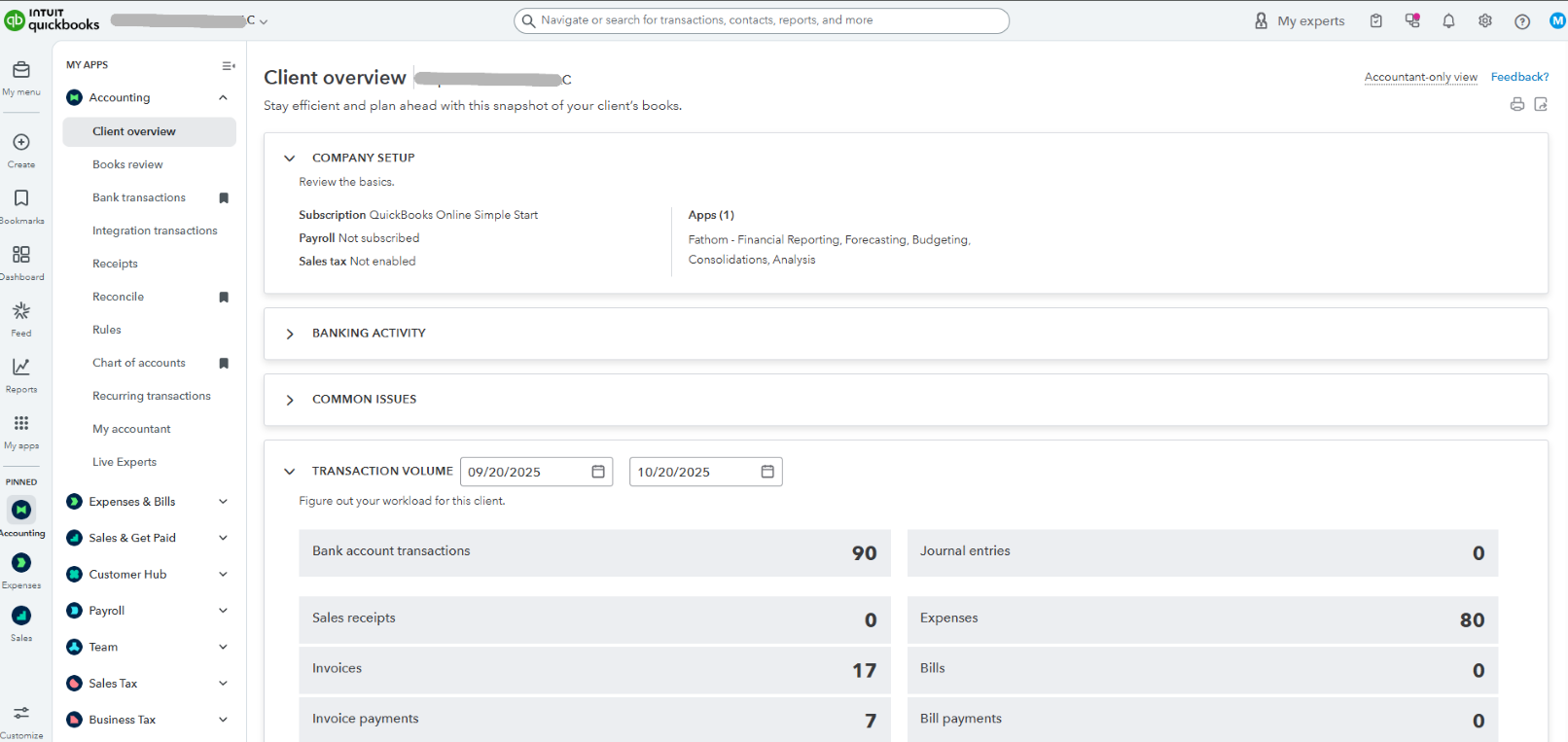
This screenshot shows a real client file that I manage in QuickBooks Online. I use this dashboard to get a full snapshot of each client’s bookkeeping setup, transaction activity, and key performance areas.
The client is subscribed to QuickBooks Online Simple Start, and I’ve integrated Fathom to generate deeper financial insights such as cash flow forecasting and performance analysis.
For the period shown (September 20–October 20, 2025), I’ve reviewed and categorized:
90 bank account transactions to ensure accuracy across accounts
17 invoices and 7 invoice payments for proper revenue tracking
80 expense entries to maintain clear and organized expense categorization
I monitor these metrics regularly to keep the books clean, identify trends, and make month-end reconciliations smooth and error-free.
Bank Feed
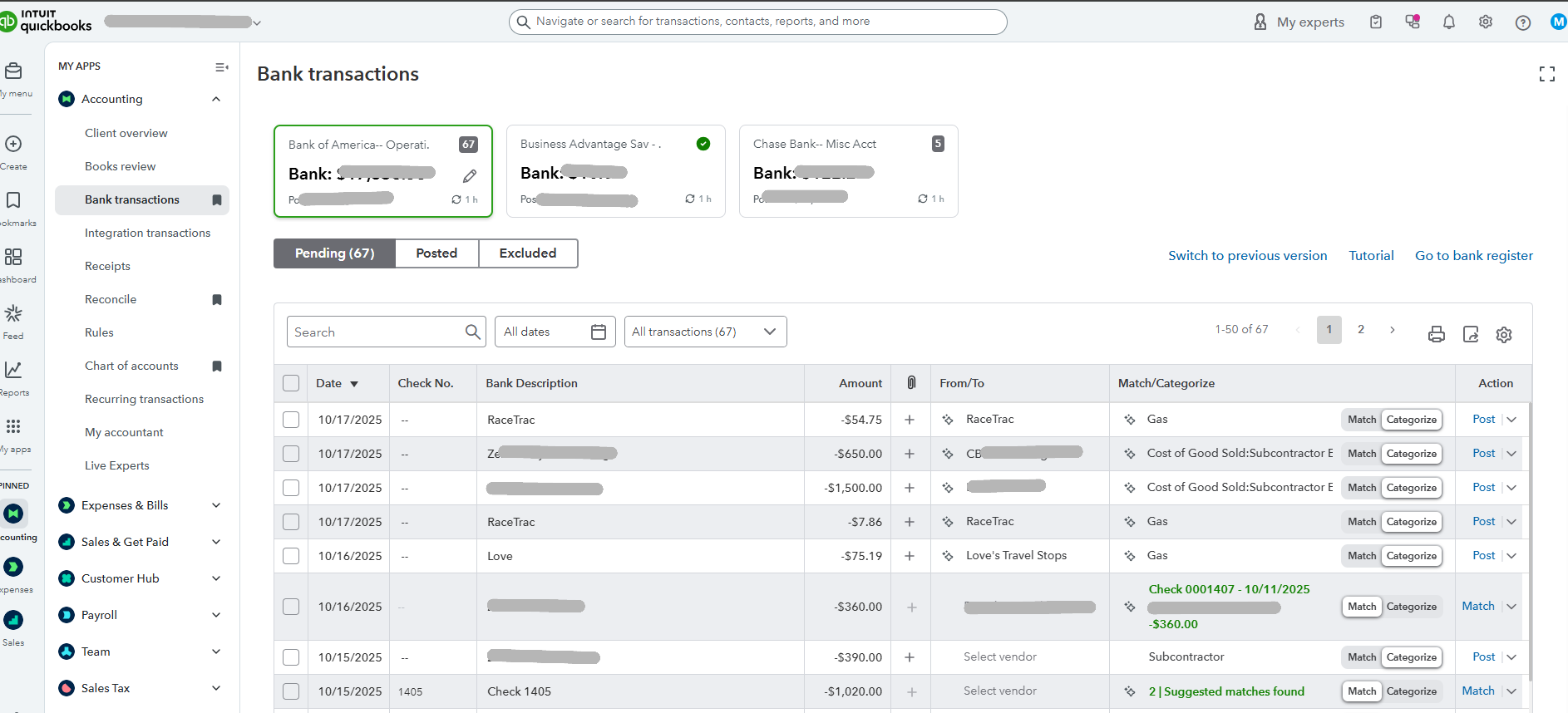
This screenshot shows the bank feed tab inside my client’s QuickBooks Online account — one of the most important areas I manage as their bookkeeper.
The Bank Transactions dashboard allows me to monitor, review, and categorize all money movement from the client’s connected accounts — including checking, savings, and miscellaneous business accounts. In this case, the client has three connected institutions:
Each bank feed automatically imports recent activity, ensuring all transactions are up to date and ready for reconciliation.
As the bookkeeper, I carefully review each imported transaction to confirm accuracy before posting to the books. I use this screen to:
Match transactions to existing records (like invoices, bill payments, or checks).
Categorize expenses under the correct accounts (e.g., Gas, Subcontractor, Cost of Goods Sold).
Ensure consistency between the bank statements and QuickBooks records.
Identify discrepancies such as duplicates, uncategorized entries, or unmatched deposits.
In this example, you can see several categorized expenses for gas and subcontractor payments — these are coded under Cost of Goods Sold and operating expenses to accurately reflect the client’s business spending.
Transaction Categorization
This screenshot highlights my process of categorizing transactions inside a client’s QuickBooks Online (QBO) file — one of the most important steps in maintaining accurate and organized financial records.
As part of my monthly bookkeeping routine, I review every bank transaction imported into QuickBooks to ensure that each expense, deposit, or transfer is categorized correctly. This process guarantees that all income and expenses appear under the proper accounts for accurate Profit & Loss reporting, tax deductions, and cash flow analysis.
For this client, I carefully matched and categorized transactions from multiple vendors and payments, such as:
Sherwin Williams → Cost of Goods Sold: Job Supplies
Subcontractor Payments → Cost of Goods Sold: Subcontractor Expenses
QuickBooks/Intuit → Accounting Software
Chick-fil-A → Employee Meals
Chevron, BP, and RaceTrac → Gas / Vehicle Expenses
Home Depot, Lowe’s → Cost of Goods Sold: Job Supplies
Value to My Clients
Accurate categorization is what makes financial reporting reliable. It allows me to provide clients with clear insights into where their money is going, which expenses drive profitability, and which areas may need cost control.
This process also ensures that at tax time, every deductible expense is properly documented — saving clients both time and money while keeping their financial records fully compliant and audit-ready.
Transaction Rules — Automating Client Workflows in QuickBooks Online
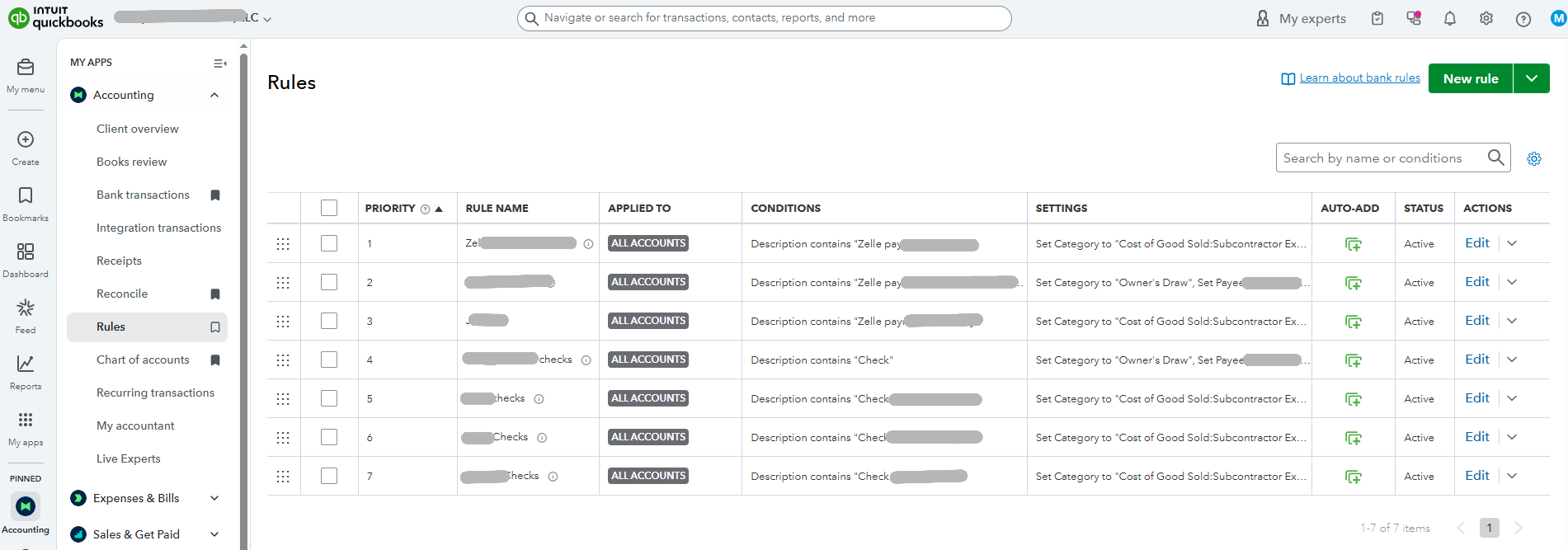
This screenshot demonstrates how I create and manage bank rules inside a client’s QuickBooks Online (QBO) file to automate repetitive transaction categorization and improve bookkeeping efficiency.
Purpose of Bank Rules
As part of my ongoing bookkeeping process, I implement custom rules that automatically categorize transactions based on specific conditions — such as keywords in the bank description, payee names, or transaction types.
These automation rules save time, reduce manual entry errors, and maintain consistency across the client’s books.
My Workflow Example
For this client, I created several automation rules that identify Zelle payments and check transactions, assigning them to the correct expense categories and payees automatically.
For instance:
Zelle payments → Categorized to Cost of Goods Sold: Subcontractor Expenses or Owner’s Draw, depending on the description.
Checks issued to vendors → Automatically categorized to Cost of Goods Sold: Subcontractor Expenses.
Each rule includes:
Conditions (e.g., “Description contains Zelle” or “Description contains Check”)
Settings (automatically assigning the correct category and payee)
Auto-add functionality to streamline posting of recurring transactions
By using this system, I’ve optimized the client’s workflow — ensuring that recurring vendor and subcontractor payments are posted consistently and accurately with minimal manual review.
Value to My Clients
Automation through rules allows me to:
Save hours of manual data entry each month
Ensure consistent categorization across similar transactions
Eliminate human error in repetitive posting
Deliver up-to-date books faster, so my clients always know where their business stands financially
This proactive setup is especially beneficial for service-based businesses like construction and contracting, where recurring vendor payments and Zelle transfers are common.
🔒 Privacy Note
All client names, vendor information, and account identifiers have been covered for confidentiality to protect client privacy and maintain professional data security standards.